
.png)
If you split your time between a city flat and a summerhouse, or have a second home a few hours away, you've probably noticed that Gridio only really knew about one of them. Your electricity contract, your ready-by time, your quiet hours – all set up for one address.
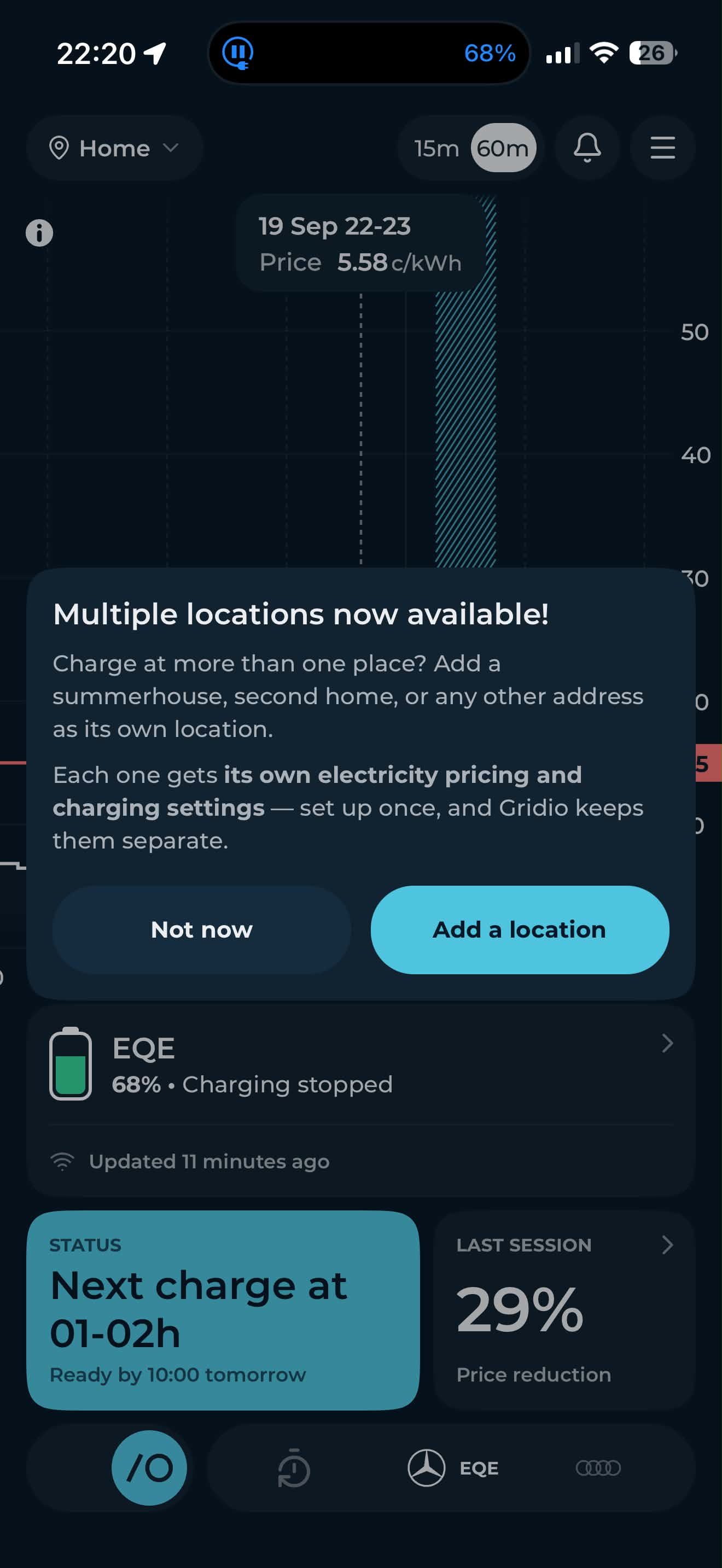
That changes today. Multiple locations are now live in the Gridio app.
What's new
You can now add as many charging locations as you need – home, summerhouse, a parent's place, the cabin – and each one keeps its own settings:
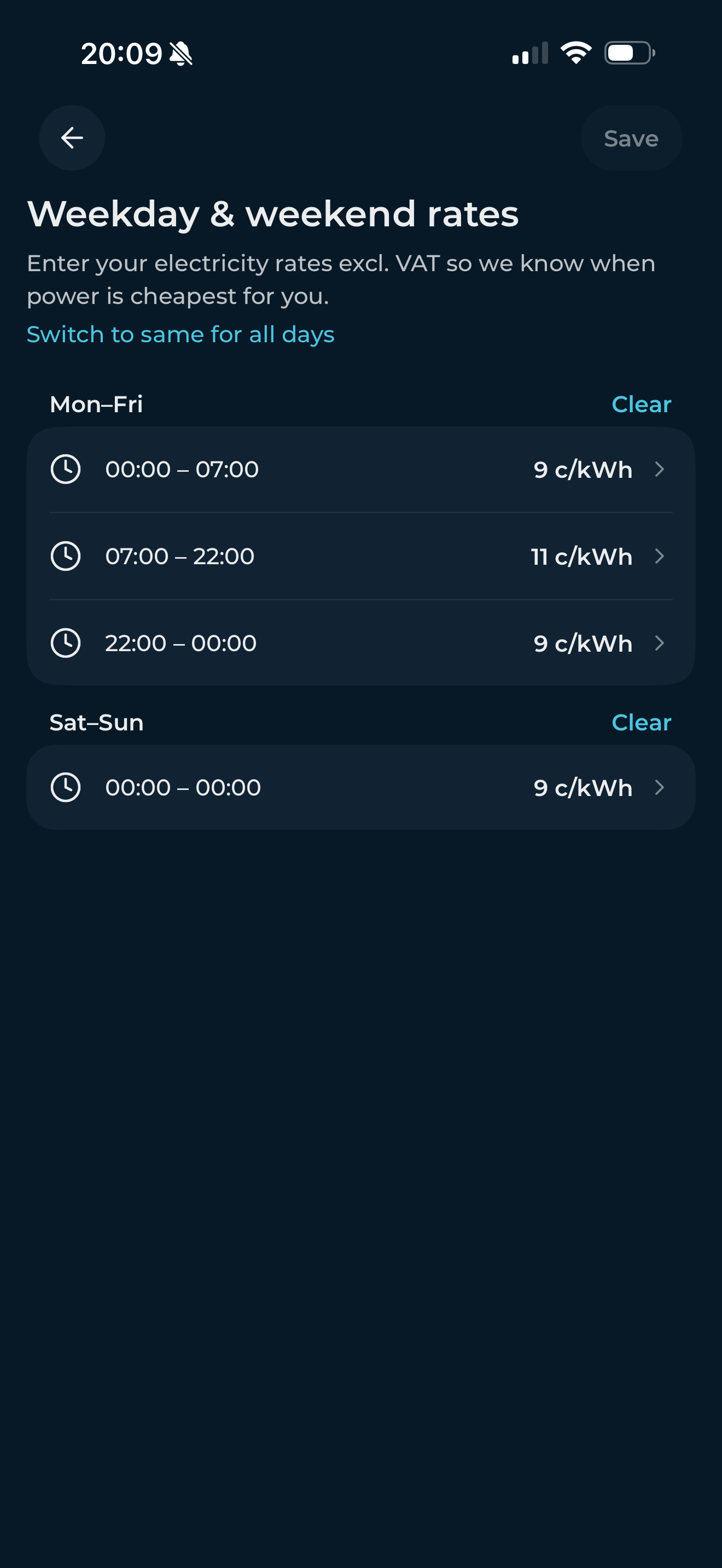
- Electricity tariff. Different provider or a different fixed rate? Set it per location, and Gridio schedules charging around the cheapest hours at the address you're actually at.
- Ready-by time and inactive hours. Leave at 7:00 on weekdays from home but sleep in at the summerhouse? Each location remembers its own routine.
- Solar. If you have an inverter connected, production and forecasts show for the location it belongs to, so a sunny roof in the countryside doesn't skew the plan for your city flat.
- Currency and tax. Locations in different countries each use their own pricing region, and savings are calculated in the right currency.
Where to find it
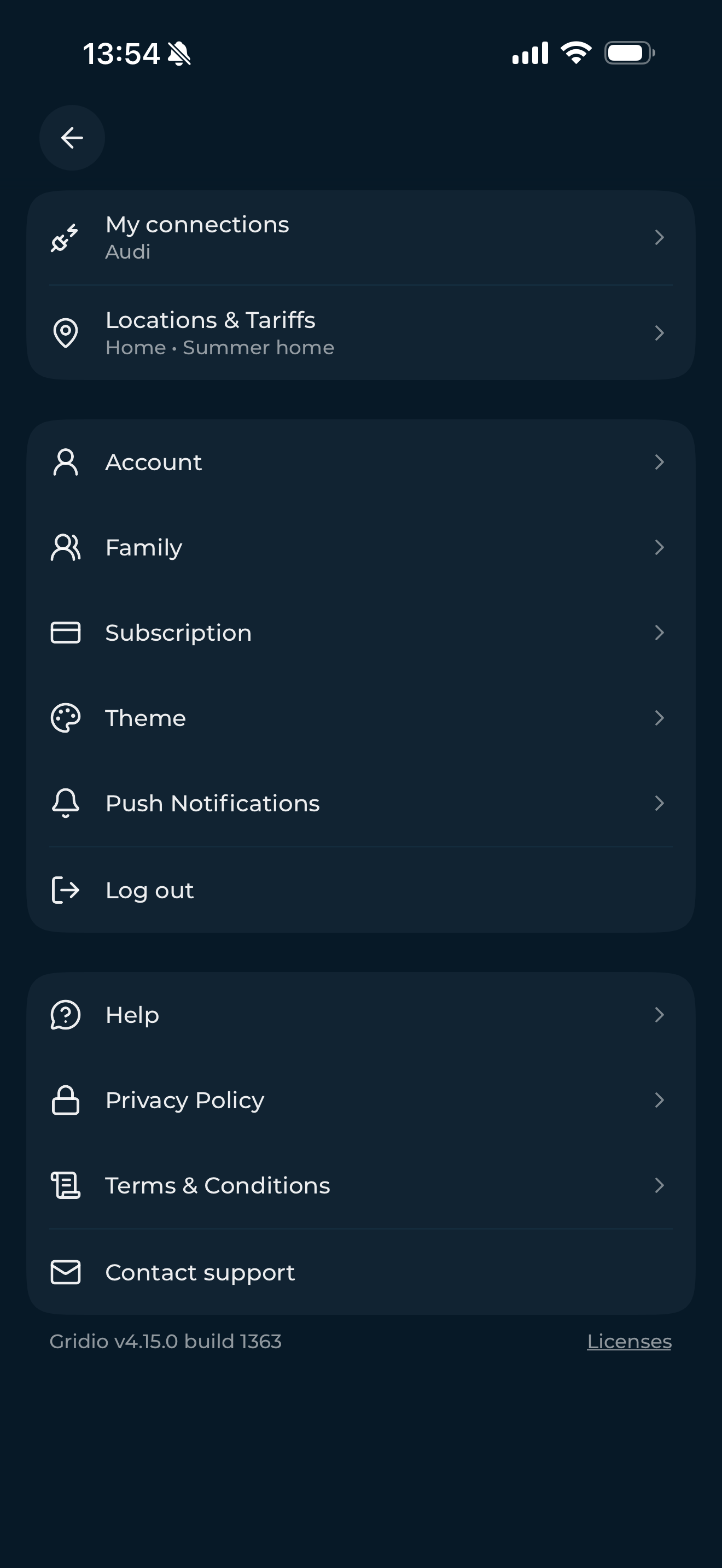
Your locations live under Settings → Locations & Tariffs. That's where you add a new address, edit an existing one, or remove one you no longer need. Each location has its own screen with the address and the full tariff editor together, so everything about that place is in one spot.
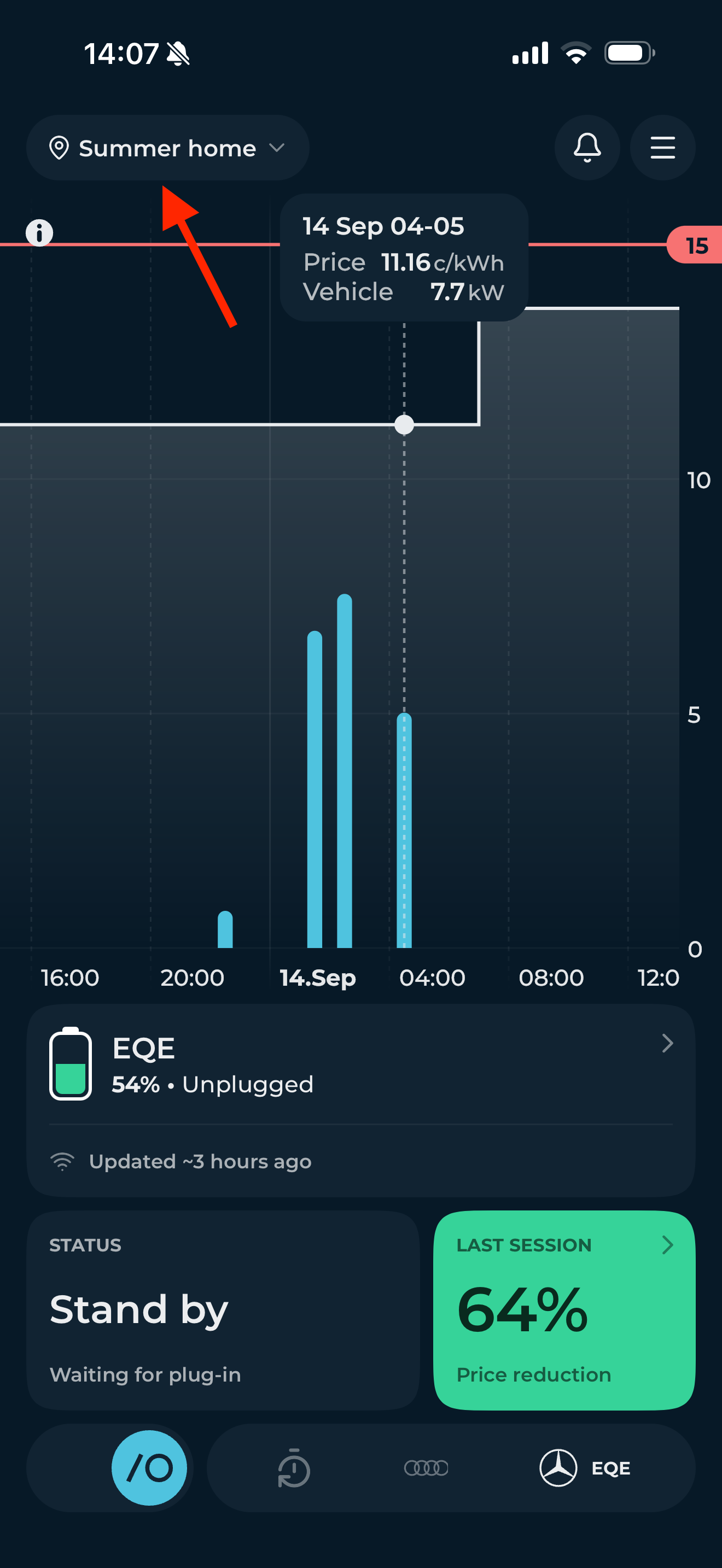
Switching is even simpler. At the top of your Home screen, the location name is now a tab (it says Home or Summer home in the screenshots). Tap it, pick where you are, and the price chart, schedule, and status switch to that address.
Who this is for
Anyone who plugs in at more than one address regularly. Summerhouse owners, families with a second home in another country or people who split time between two households. If you've ever manually changed your tariff before a weekend trip and forgotten to change it back, this is for you.
Get started
Update the Gridio app to the latest version, tap the location pill on your Home screen, and add your second address. Smart charging follows you from there.
